Mark Up PDFs With Ease
Highlight passages, draw shapes, add comments, and redline documents without installing a thing.
Free & full-featured · No uploads · Works offline
MARKUP TOOLS
The complete PDF review toolkit
All the markup tools you need for document review, proofreading, and technical redlining.

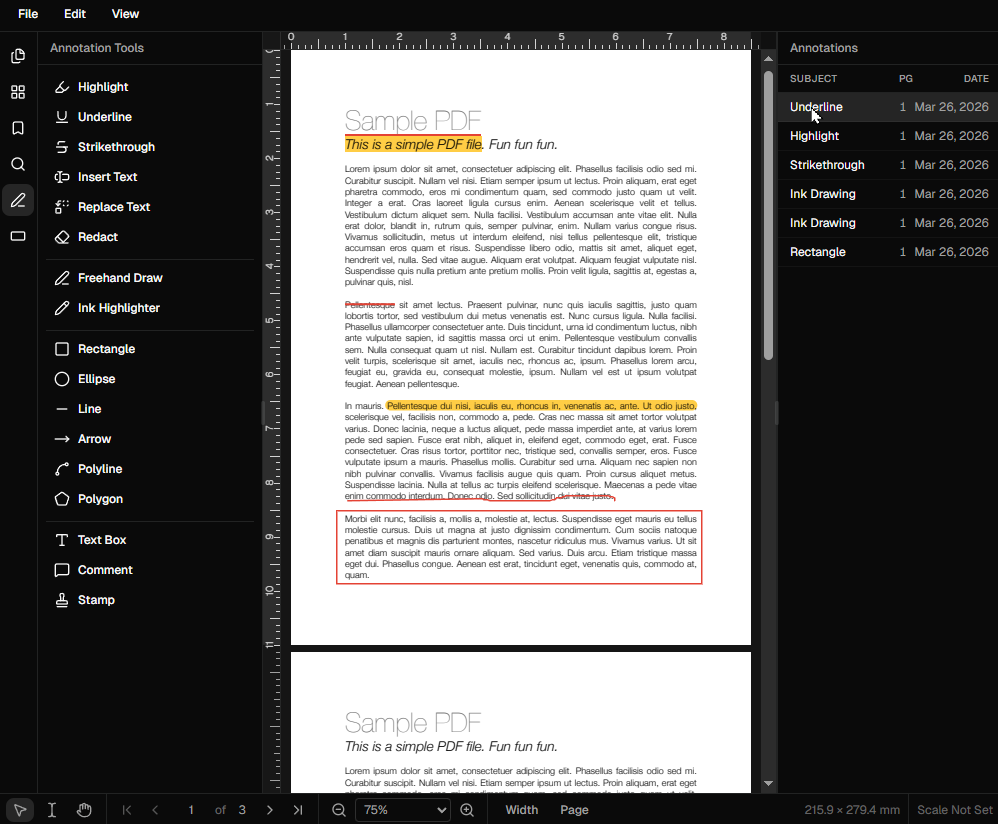
Highlight & underline: Select text and apply highlights or underlines in any colour for clear review marks.
Strikethrough & redline: Mark text for deletion with strikethrough — the standard for document redlining.
Freehand drawing: Use the pencil tool to draw freehand marks, circles around items, or hand-drawn arrows.
Frequently Asked Questions
Everything you need to know before you get started.
What markup tools are available?
Tool list
DraftPDF includes: highlight, underline, strikethrough, freehand pen, shapes (rectangle, ellipse, polygon, line, arrow), sticky notes, callouts, and stamps.
Can I change the colour of markups?
Colour customisation
Yes. Every annotation type has a colour picker. You can set custom colours for fills, strokes, and text, and the editor remembers your last-used colours.
Can multiple reviewers mark up the same PDF?
Collaboration
Each reviewer can open the PDF in their own DraftPDF session and add their markups, then save. The resulting PDFs can be compared or the annotation layers can be merged into a single document.
Will markups appear when I print?
Print & export
Yes. When you save and download the marked-up PDF, all annotations are embedded in the file and will print or display in any standard PDF viewer.
Ready to get started?
Open DraftPDF in your browser — no account, no install, no data ever leaves your device.
Free & full-featured · Works offline · No sign-up required
Related Tools
Merge PDFs
Open multiple PDF files and combine them into one document in seconds. Free, browser-based PDF merger — no uploads, no installs.
➕Insert Pages
Add pages from another PDF or insert blank pages anywhere in your document. Free, browser-based, no uploads required.
✂️Delete Pages
Remove unwanted pages from any PDF document instantly. Browser-based, no uploads, no installs.
🔖PDF Bookmarks
Create, edit, and organise PDF bookmarks (outlines) to make navigation effortless. Free, browser-based.