Remove Pages from PDF in Seconds
Select one page or many and delete them instantly. No re-uploading, no waiting — just open, remove, and save.
Free & full-featured · No uploads · Works offline
PAGE MANAGEMENT
Clean up your PDF documents fast
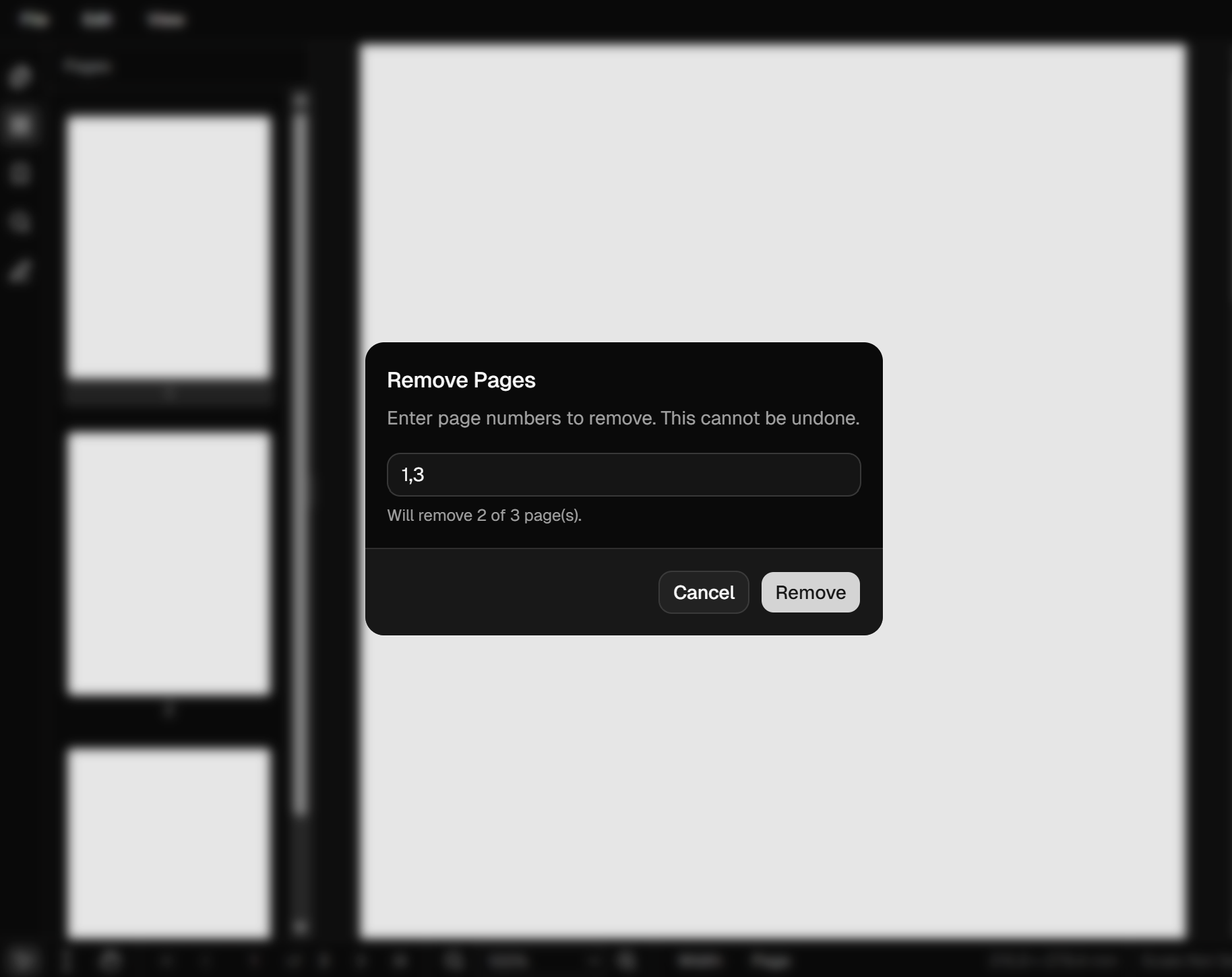
Strip out blank pages, duplicates, or confidential content before sharing your document.

Multi-select deletion: Hold Shift or Ctrl to select multiple pages and delete them all at once.
Thumbnail preview: See exactly which pages you're removing before you confirm the deletion.
Undo support: Made a mistake? Undo restores deleted pages without reopening the file.
Frequently Asked Questions
Everything you need to know before you get started.
How do I delete a page from a PDF?
Step-by-step guide
Open your PDF in DraftPDF, right-click any page thumbnail in the sidebar, and choose 'Delete Page'. You can also select multiple thumbnails and use the toolbar delete button to remove them all at once.
Are my files safe?
Privacy & security
Your files never leave your device. DraftPDF runs entirely in the browser using WebAssembly, so there are no server uploads and no privacy risk.
Will the page numbers update automatically?
Document structure
The internal page count and any displayed page numbers in the viewer update immediately after deletion. If your PDF uses embedded page-number annotations, those are separate and unaffected.
Ready to get started?
Open DraftPDF in your browser — no account, no install, no data ever leaves your device.
Free & full-featured · Works offline · No sign-up required
Related Tools
Merge PDFs
Open multiple PDF files and combine them into one document in seconds. Free, browser-based PDF merger — no uploads, no installs.
➕Insert Pages
Add pages from another PDF or insert blank pages anywhere in your document. Free, browser-based, no uploads required.
🔖PDF Bookmarks
Create, edit, and organise PDF bookmarks (outlines) to make navigation effortless. Free, browser-based.
✏️Edit PDF
Edit, annotate, and modify PDF files directly in your browser. No software install, no uploads.